







How can we help you?
Frequently asked questions
- Link to this answer
- iPad and iPhone with iOS 18.6 or later.
- Mac with Apple silicon (M1 or later) and macOS 15.6 or later, using the iPad version from the Mac App Store.
There is no Android, Windows or web version.
- Link to this answer
No. On iPhone you always write with your finger. On iPad, CollaNote starts with Apple Pencil for writing and your finger for scrolling and zooming. To write with your finger instead, tap the Hand/Stylus Toggle on the toolbar. Tap it again to go back to scrolling with your finger.
Some features need a specific pencil: the Arc Menu opens with the squeeze of Apple Pencil Pro or the double tap of Apple Pencil Pro and Apple Pencil (2nd generation).
- Link to this answer
In a note, tap Menu, open the Gestures tab and find Palm Rejection. Choose High, Normal or Low. Normal is the default; choose High if your hand still leaves marks.
If you write with Apple Pencil, also make sure the Hand/Stylus Toggle on the toolbar is set so that your finger scrolls instead of drawing.
- Link to this answer
No. You can take notes without signing in. Your notes are stored on your device or in your iCloud Drive, not on CollaNote's servers.
An account is only needed to collaborate with other people and to share notes to the community. You can sign in with Apple, with Google, or with an email account.
- Link to this answer
Store your notes in iCloud Drive. Notes in iCloud Drive sync to every device signed in with your Apple ID.
Step 1: Switch the storage to iCloud Drive
At the bottom of the sidebar on the home screen, switch from On My Device to iCloud Drive. The first time, CollaNote explains how it works; tap Use iCloud Drive.
Step 2: Bring your existing notes over
On My Device and iCloud Drive are two separate folders that do not share notes. Use Move or Copy to bring the notes you want into iCloud Drive.
Step 3: Do the same on your other devices
Open CollaNote on your other iPad, iPhone or Mac with the same Apple ID and choose iCloud Drive there too.
Make sure iCloud has enough free space, and back up your notes before you turn iCloud off. If CollaNote says it can't select the iCloud folder, turn on iCloud Drive in the Settings app first.
- Link to this answer
Not at the moment. CollaNote stores notes On My Device or in iCloud Drive. To keep a copy elsewhere, export a note as a PDF or a Note file (.cnote) and save it to Google Drive, Dropbox or OneDrive from the share sheet or the Files app.
- Link to this answer
- One note: in the note, tap Export, Print & Share and choose Note file. The .cnote file keeps everything and can be imported again with Import CNOTE.
- All notes: go to Settings › General › Open in Files App. The Files app shows your CollaNote folder, and you can copy it to another place for safekeeping.
- Automatically: keep your notes in iCloud Drive, so a copy is always in your iCloud.
Use the Files app only for sorting and backing up. Open and edit your notes in CollaNote.
- Link to this answer
Open Trash in the sidebar on the home screen. Notes and folders you delete are kept there until you remove them. Tap … on a note and choose Restore to put it back, or Delete Permanently to remove it for good. Empty Trash removes everything in it.
Notes deleted from the Files app show up in Trash too, and can be restored for as long as iOS keeps them, which is 30 days.
- Link to this answer
On the home screen, tap + and choose Import PDF, Import DOC, DOCX, Import PPT, PPTX or Import CNOTE, then pick the file in the Files app. Word and PowerPoint files are turned into PDF pages you can write on.
To send files from a computer, choose Import over local network and follow the steps on screen. It takes PDF, PowerPoint, Word and CollaNote notes.
Inside a note, Insert lets you add photos from your library or camera, paste an image, scan a document or scan text with the camera.
Not at the moment. Import the PDF from the home screen with + › Import PDF, and it opens as its own note. Inside a note you can still add pictures and scanned pages: tap Insert and choose a photo, Scan Document with Camera or Scan Text with Camera.
Link to this answer- Link to this answer
In the note, tap Export, Print & Share. Choose PDF, Images, PowerPoint or Note file, then All pages, This page or a Range. From there you can share the file, print it or save images to Photos.
Your handwriting, highlights and drawings are part of the exported pages.
Yes. Pick the Selection Tool, circle the text, and tap Recognize Text. CollaNote reads the text in that area, from a PDF or from your handwriting, and you can Copy it or turn it into a text box with Add Text Box.
Link to this answer- Link to this answer
In a note, open Pages, tap … on a page and choose Change Paper or Template. Pick a design in the Paper or Templates tab. Turn on Apply for new pages to use it for every page you add later.
When you create a note, you choose its paper in the new note window. Some papers and paper colours need Premium.
New notes use A4 portrait pages. Choosing another page size is not available yet.
- Link to this answer
Tap Eraser on the toolbar, then tap it again to open its options.
- Whole removes the entire stroke you touch. Partial erases only where the eraser passes, like a real eraser. Whole is the default.
- Size sets the eraser width, from 1 to 70.
- Auto switch back to last tool gives you back your pen or highlighter as soon as you lift the eraser.
- Scribble out to erase lets you scribble over writing with a pen or the pencil to erase it, without picking up the eraser.
With Apple Pencil Pro or Apple Pencil 2, in a note, set Menu › Gestures › Apple Pencil Double Tap to Switch Tool, and a double tap jumps between your pen and the eraser.
- Link to this answer
Use the Text Tool on the toolbar to add or edit typed text, or tap Insert › Insert text box.
To write in a text box with Apple Pencil and have it typed for you, turn on Use iOS Scribble feature in the Text Tool options.
To convert handwriting you already wrote, circle it with the Selection Tool and tap Recognize Text.
CollaNote does not import font files itself. It uses the fonts installed on your iPad or iPhone: install a font with a font app from the App Store, then choose it from the font list in the text style options of a text box.
Link to this answer- Link to this answer
Step 1: Tap Translation Tool on the toolbar
Tap it a second time to open its settings, where you choose the From and To languages, what Read aloud plays, and how long the result stays on screen.
Step 2: Drag over the text
Draw a box around the words. It works on PDFs, slides, images with text, typed text and clear handwriting. Switch the selection to Freehand in the settings if you prefer to trace around the text.
Step 3: Read or listen to the result
A card shows the original and the translation, each with a copy button and Read aloud. Select a single word to get a dictionary entry instead. Swipe the card up or tap outside it to close it.
The free plan includes a limited number of translations. CollaNote Premium removes the limit. Offline, CollaNote can use Apple's on-device translation if the languages are downloaded.
- Link to this answer
In a note, open the side panel and choose Calculator. It has three tabs: Handwriting, Scientific and Emulator.
In the Handwriting tab, write the problem by hand and CollaNote solves it.
Handwriting recognition needs an internet connection; the calculation itself runs on your device.
- Link to this answer
- AI Pen on the toolbar: circle an area to generate an image, convert handwriting or have your notes explained.
- AI Chat in the side panel, with CollaNote AI, ChatGPT, Grok and Gemini tabs.
- Calculator in the side panel, which solves handwritten maths.
The CollaNote AI tab needs iOS 26 and a device that supports Apple Intelligence (A17 Pro or M1 and later). On other devices it is hidden. Image generation uses Apple Image Playground.
- Link to this answer
Tap the Audio recording Tool on the toolbar, or choose Record Audio in the side panel. CollaNote records while you write and keeps the audio in sync with your handwriting.
Your recordings appear in a list where you can play, export, rename or delete them. Long recordings are fine: CollaNote saves them in parts and joins them automatically.
The free plan includes one recording per note. Premium gives unlimited recordings. Recording is not available in public rooms.
- Link to this answer
On the home screen, open the Flashcards tab, tap + and choose Create Flashcard. In a deck, tap Learn to study: swipe each card to Easy, Remembered or Hard.
To use decks made by other people, open Discover in the sidebar. Search for a topic or browse the decks published near you.
- Link to this answer
Open the Planners tab on the home screen. Some planners are free and some need Premium.
Planner tabs and links work. By default, tap a link with your finger, or double-tap it with your pen. Change this in a note under Menu › Gestures: Tap at PDF Link with finger, and Open PDF Links with Ink Tool (Off, Tap or Double Tap).
You can add your own links too, with Insert › Insert Link to a Page or Insert Link to a Website.
- Link to this answer
Yes. Open a note, open Collaboration in the side panel, type a person's nickname or email and tap Invite. You see each other's changes as they happen, and the Chat and Activities tabs let you talk and follow what changed.
You need to be logged in to invite people, and the people you invite need a CollaNote account. Notes larger than 50 MB cannot be shared for collaboration.
- Link to this answer
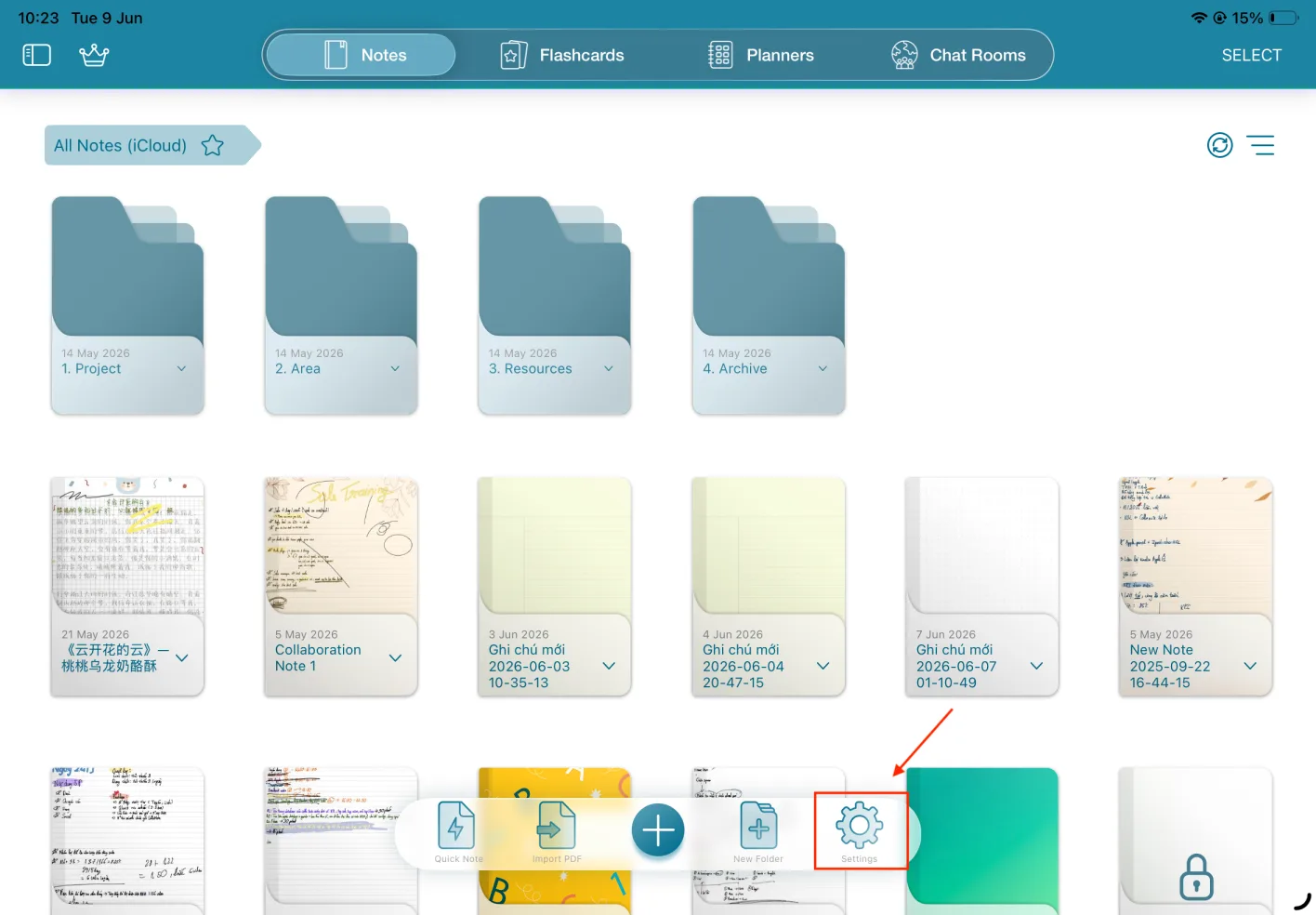
Step 1: Open the CollaNote app and go to Settings
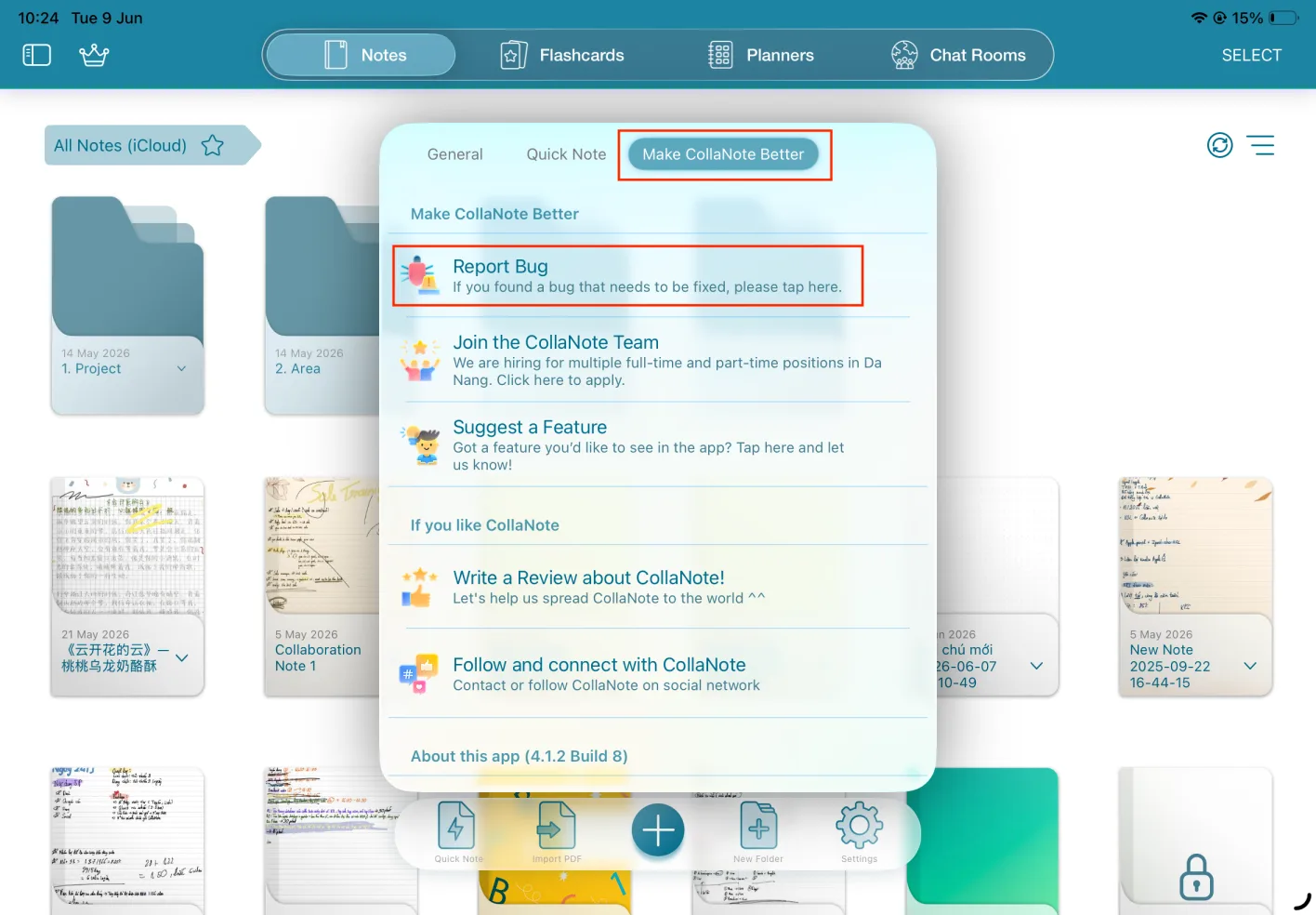
Step 2: Tap Make CollaNote Better, then select Report Bug
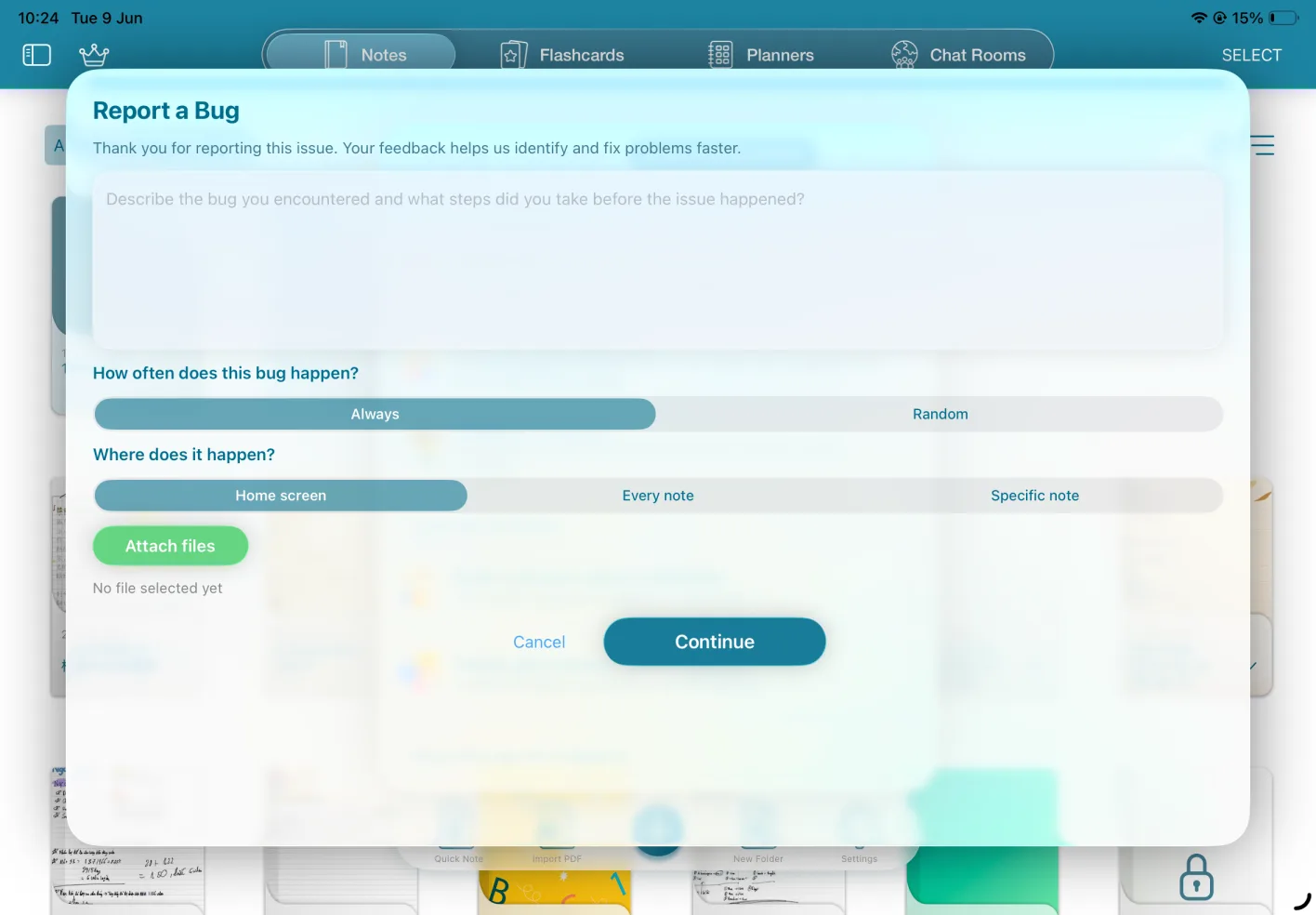
Step 3: Describe the bug
Complete the following information via email:
- Bug description: please describe the error you encountered accurately.
- How often does this bug happen?
- Where does it happen? Specify where the issue occurs, such as the home screen, every note, or a specific note.
- Attachments: attach as many files as possible so developers can respond quickly and fix the bug sooner. Include files such as videos, the affected .cnote file, or PDFs. When you report a bug from inside a note, that note file is attached automatically.
CollaNote uses Apple's Mail app to send bug reports to our developers. Before reporting a bug, please make sure you have signed in to a Mail account.
How to set up Apple Mail
Step 1: Open Settings on your iPad
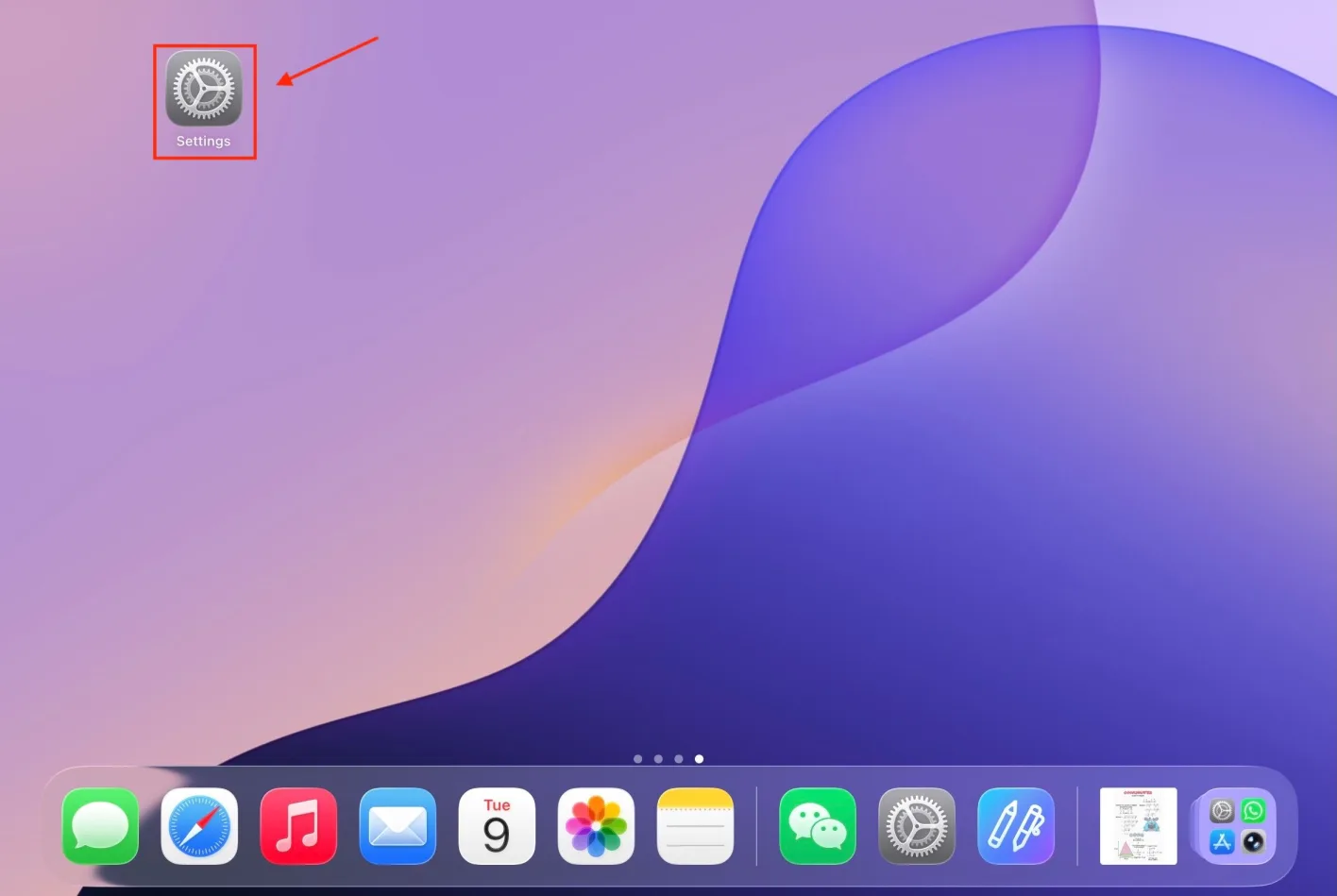
Step 2: Go to Mail → Mail Accounts → Add Account
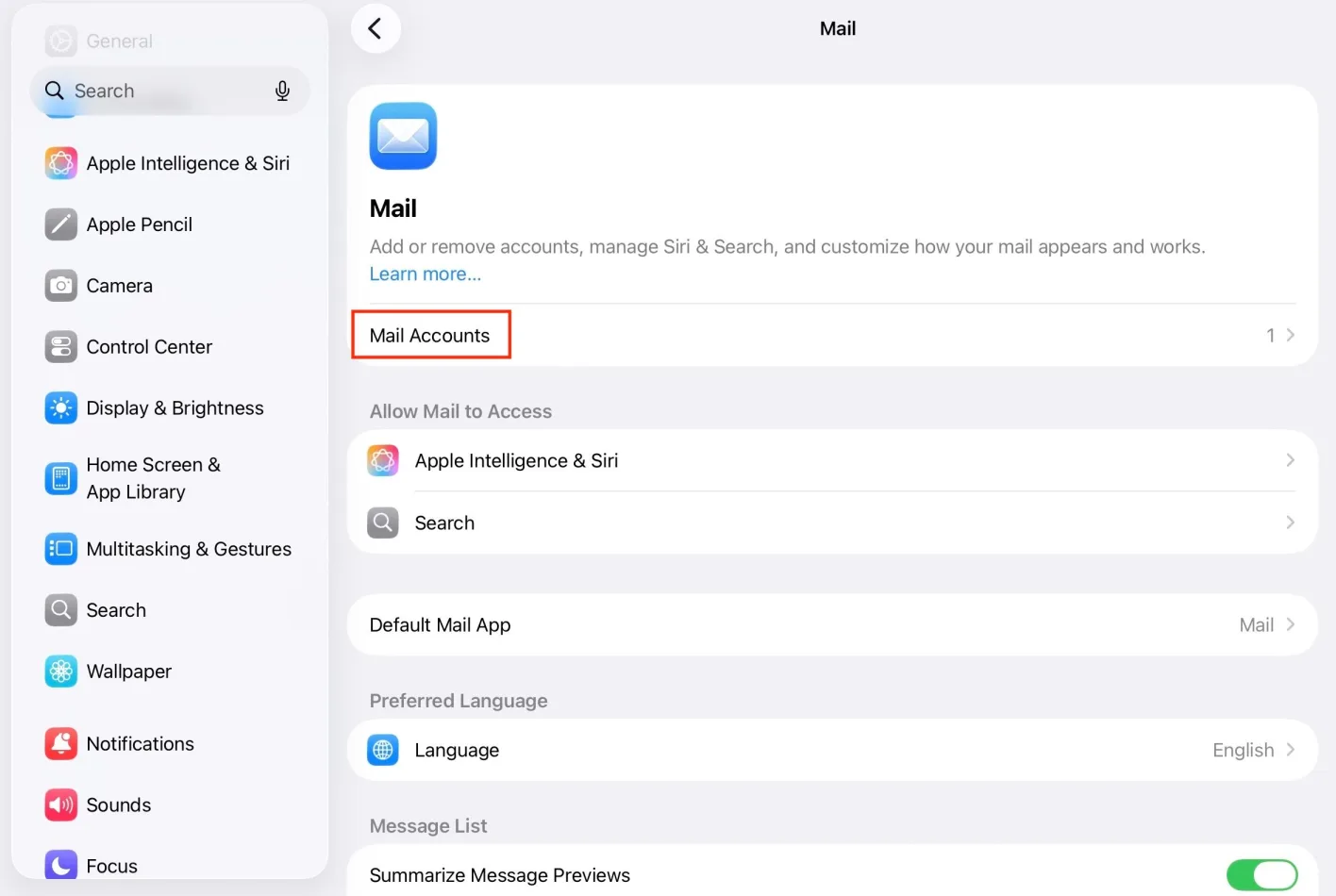
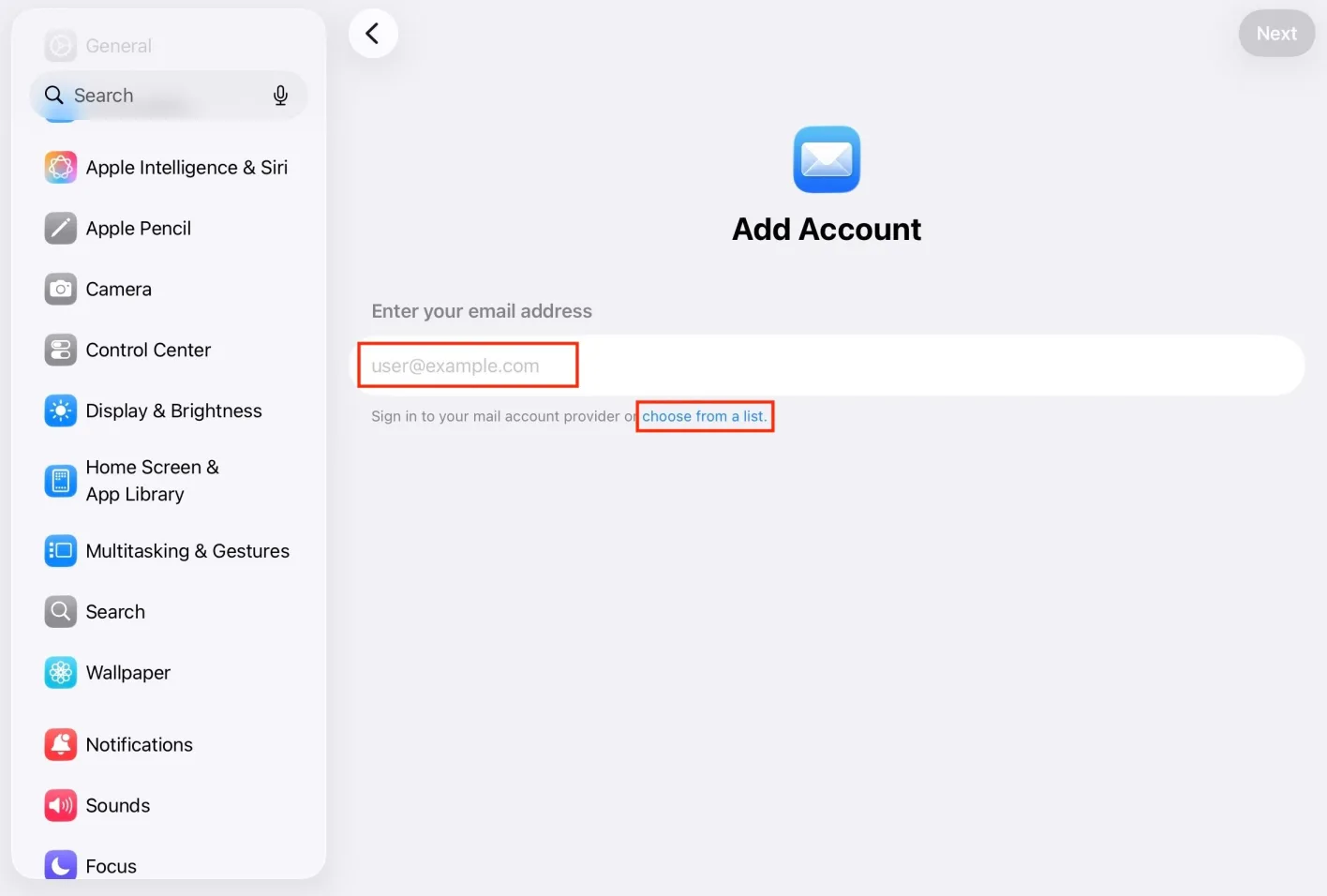
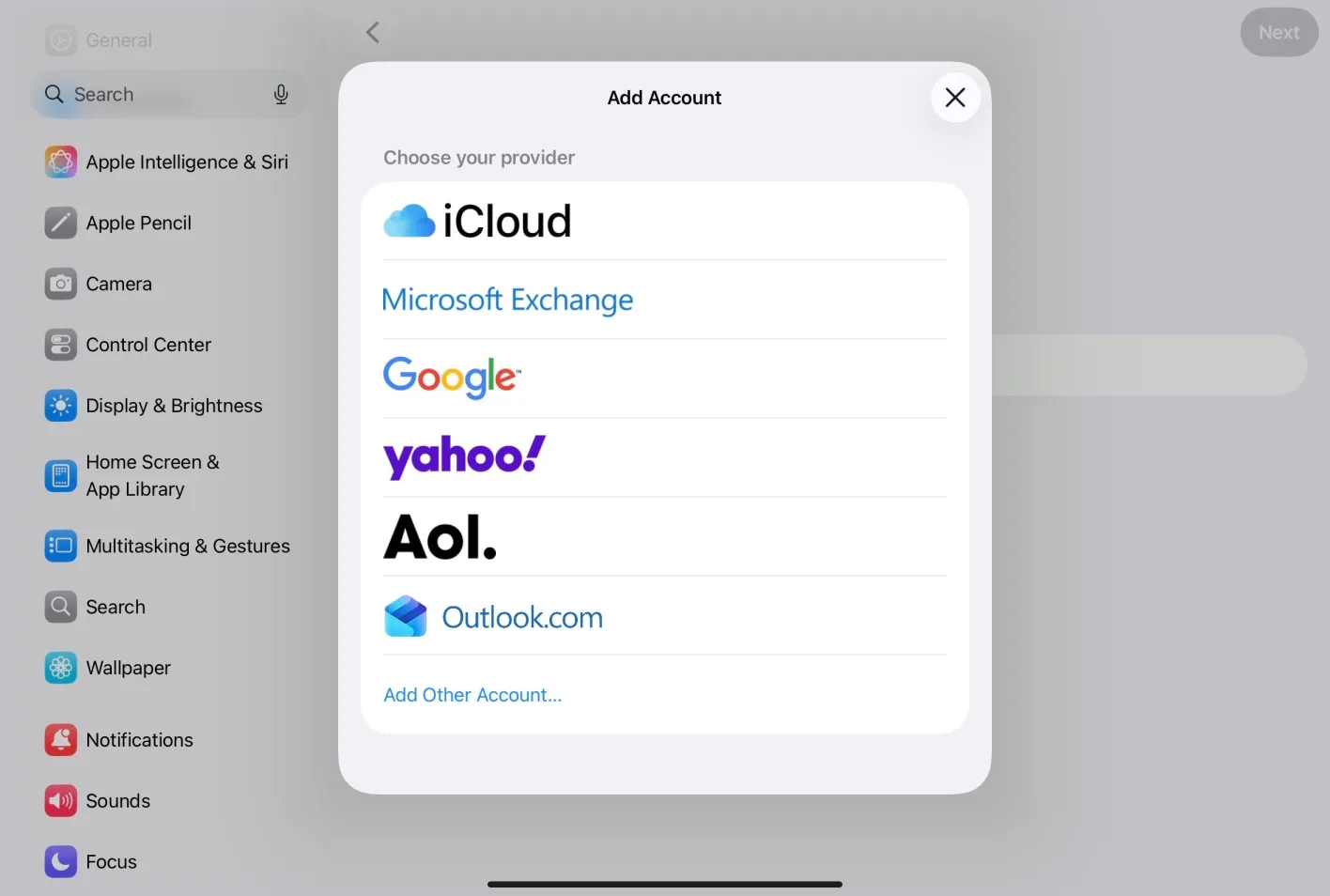
Step 3: Enter your email address, or choose your provider from the list
You can pick iCloud, Microsoft Exchange, Google, Yahoo, AOL, Outlook.com, or Add Other Account.
Step 4: Sign in with your email account and complete the setup
If your account is already shown in the Settings app on your iPad, you have signed in successfully.
- Link to this answer
In the app, go to Settings › Make CollaNote Better › Suggest a Feature. It opens a page that explains the fastest way: write your idea in an App Store review. The team reads every review daily and brings them to the weekly developer meeting.
- Link to this answer
- Chat with the team on collanote.com/chat. You talk to real people, not an AI.
- Email support@collanote.com.
- To report a problem with the app, use Report Bug inside the app, so your note file and device details reach the developers with your message.